Table of Contents
ToggleNothing kills a gaming session faster than a controller that won’t cooperate. Joy-Con drift, unresponsive buttons, connection drops, these issues plague Nintendo Switch owners worldwide, and they’re not getting better on their own. The good news? Most controller problems can be fixed at home without sending the device away for weeks or dropping cash on a replacement.
This guide covers the most common Nintendo Switch controller repairs, from simple calibration fixes to full analog stick replacements. Whether someone’s dealing with drift on a Joy-Con, sticky buttons on a Pro Controller, or batteries that won’t hold a charge, the solutions are here. Some fixes take minutes with no tools required. Others need a bit of patience and a screwdriver. Either way, that controller doesn’t have to end up in a drawer.
Key Takeaways
- Nintendo Switch controller repair for common issues like Joy-Con drift, sticky buttons, and battery problems can be done at home for under $20 using basic tools like a tri-wing screwdriver and contact cleaner.
- Joy-Con drift, the most notorious Nintendo Switch controller problem, stems from worn potentiometer contact pads and can often be temporarily fixed with calibration, contact cleaner, or compressed air before requiring analog stick replacement.
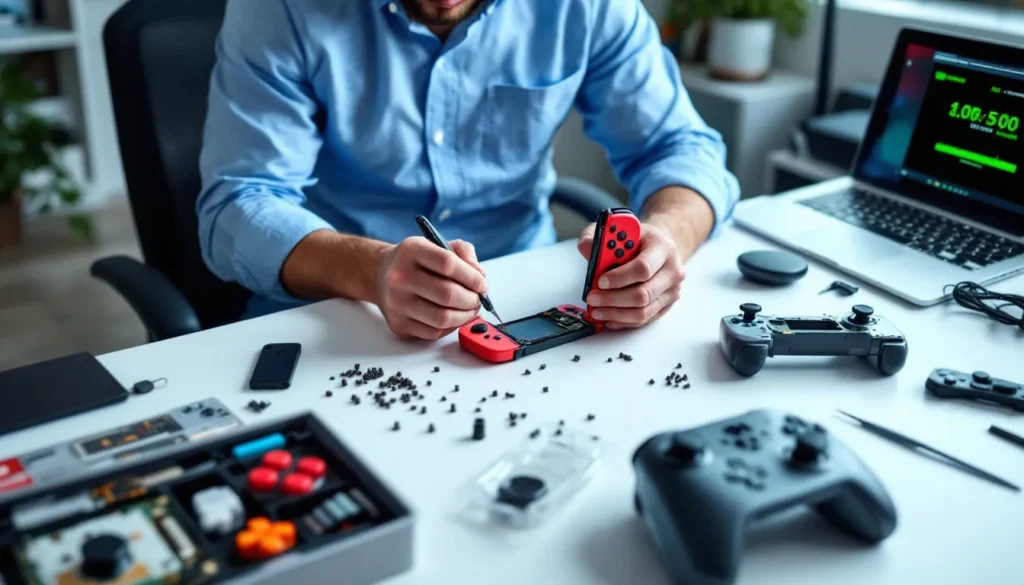
- Disassembling a Joy-Con or Pro Controller for repairs is manageable with the right tools—a magnetic tri-wing screwdriver, plastic prying tools, and tweezers prevent stripped screws and broken clips during the process.
- Hall Effect replacement analog sticks ($20–30) offer a permanent solution to drift by using magnetic sensors instead of potentiometers, making them more durable than OEM Nintendo parts.
- Connection and pairing issues typically resolve with software fixes like firmware updates, controller re-pairing, and interference removal, while battery replacement becomes necessary after 2–3 years of regular gaming use.
- Nintendo offers free drift repairs and a $40 flat fee for out-of-warranty repairs, but DIY repairs save time and money for players with basic technical skills and access to replacement parts.
Common Nintendo Switch Controller Problems and Symptoms
Switch controllers, both Joy-Cons and Pro Controllers, share a few notorious failure points. Recognizing the symptoms early makes repair easier and prevents further damage.
Joy-Con Drift: Causes and Warning Signs
Joy-Con drift is the most infamous problem Nintendo Switch owners face. The left analog stick (and sometimes the right) registers movement when no one’s touching it. Characters walk in circles, camera angles drift, and menu selections become a battle.
The root cause? The analog stick uses a potentiometer with graphite contact pads that wear down over time. Dust and debris get under the rubber cap, accelerating the degradation. Warning signs include slight camera drift in Zelda, unintended movement in Smash Bros., or the calibration screen showing input when the stick is centered.
Drift affects Joy-Cons manufactured across all batches since 2017, though newer units (post-2021) use slightly improved stick modules. Nintendo faced a class-action lawsuit over this issue, and while they extended repair coverage, the problem persists.
Connection and Syncing Issues
Controllers that won’t pair, disconnect mid-game, or show the “searching” animation endlessly fall into this category. Connection problems stem from wireless interference, corrupted Bluetooth pairing data, or, less commonly, damaged rail connectors on Joy-Cons.
Symptoms include:
- Controllers not showing up in the “Change Grip/Order” menu
- Frequent disconnects during gameplay
- One Joy-Con working while the other doesn’t
- Controllers working docked but not wirelessly
These issues often resolve with software fixes, but hardware damage (bent rails, damaged sync buttons) requires physical repair.
Unresponsive or Sticky Buttons
Sticky or unresponsive buttons happen when dust, spilled drinks, or manufacturing defects gum up the button mechanism. The A button might require excessive force, the ZL trigger might not spring back, or the d-pad could feel mushy.
Joy-Cons use membrane switches beneath plastic caps. When debris accumulates or the membrane tears, buttons stop registering inputs reliably. Pro Controllers use similar tech but with better build quality, button failures are less common but still happen, especially with heavily-used units.
Battery and Charging Problems
Controllers that die quickly, won’t charge, or show incorrect battery percentages suffer from battery degradation or charging circuit issues. Joy-Con batteries last 20 hours when new but drop to 6-8 hours after 2-3 years of regular use. Pro Controller batteries degrade slower but aren’t immune.
Signs of battery problems:
- Battery drains in under 10 hours of use
- Charging indicator doesn’t light up
- Controller dies even though showing 50%+ charge
- Overheating during charging
Lithium-ion batteries lose capacity over charge cycles. After 500 cycles (roughly 2 years for daily players), replacement becomes necessary.
Essential Tools and Materials for Controller Repair
The right tools make controller repair straightforward. Attempting disassembly with makeshift gear damages screw heads and plastic clips.
Required tools for basic repairs:
- Tri-wing Y00 screwdriver – Joy-Cons use tri-wing security screws. A magnetic tip helps with reassembly.
- Phillips #00 screwdriver – For internal components and Pro Controller disassembly.
- Plastic prying tools – Metal tools scratch housings and crack plastic clips. Guitar picks work in a pinch.
- Tweezers (precision) – For handling ribbon cables and small springs.
- Isopropyl alcohol (90%+) – Contact cleaner alternative. Must be 90% or higher to prevent corrosion.
- Replacement parts – Analog stick modules (OEM or aftermarket), button membranes, or batteries depending on the repair.
Optional but helpful:
- Anti-static wrist strap (prevents ESD damage to circuit boards)
- Magnetic parts tray (keeps screws organized)
- Compressed air or electric air duster
- Contact cleaner spray (WD-40 Electrical Contact Cleaner works)
Replacement analog stick modules cost $8-15 for aftermarket, $15-25 for OEM Nintendo parts. Battery replacements run $10-15. A basic tool kit with the necessary screwdrivers costs $10-20 on Amazon.
Many gamers invest in quality repair tools designed specifically for electronics to avoid stripping screws during disassembly. One stripped tri-wing screw can turn a 20-minute repair into an hour-long ordeal.
Step-by-Step: Fixing Joy-Con Drift Without Opening the Controller
Before cracking open the controller, try these non-invasive fixes. They solve drift in 40-50% of cases without voiding any warranty coverage.
Calibration and Software Troubleshooting
Start with software-based solutions. The Switch’s calibration tool can correct minor drift caused by software glitches rather than hardware failure.
- Navigate to System Settings > Controllers and Sensors > Calibrate Control Sticks
- Select the affected Joy-Con (left or right)
- Press the stick fully in each direction when prompted
- Check if the center position shows neutral (crosshair centered)
If the crosshair drifts during the test, calibration won’t fix it, hardware intervention is needed. But if recalibration centers the stick, the problem might have been a corrupted calibration profile.
Also worth trying:
- Update controller firmware via System Settings > Controllers and Sensors > Update Controllers
- Restart the console (full power-down, not sleep mode)
- Test in multiple games to rule out game-specific bugs
Contact Cleaner Method
This fix works by dissolving debris under the analog stick cap. It’s surprisingly effective and takes under five minutes.
- Power off the Switch completely
- Lift the rubber skirt at the base of the analog stick with a fingernail or toothpick
- Spray electrical contact cleaner under the skirt (2-3 short bursts)
- Rotate the stick in full circles 20-30 times to work the cleaner through the mechanism
- Let dry for 10 minutes before powering on
Use only electrical contact cleaner, regular WD-40 or lubricants will damage the potentiometer. Isopropyl alcohol (90%+) works as an alternative but takes longer to dry.
This method provides temporary relief for many users. Drift might return in weeks or months as new debris accumulates, but it’s a quick fix that extends the controller’s life.
Compressed Air Technique
Compressed air clears loose dust without introducing liquid. It’s less effective than contact cleaner but safer for those nervous about sprays.
- Power off the console
- Lift the analog stick’s rubber cap
- Hold the compressed air can upright (never inverted, this sprays freezing propellant)
- Deliver short air bursts under the cap from multiple angles
- Rotate the stick while blowing air to dislodge particles
This works best for recent drift caused by dust rather than worn contact pads. For stubborn cases, combining compressed air with contact cleaner yields better results.
Advanced Joy-Con Drift Repair: Replacing the Analog Stick
When non-invasive methods fail, replacing the analog stick module permanently fixes drift. This repair requires disassembly but isn’t as intimidating as it looks.
Disassembling the Joy-Con Safely
Proper disassembly prevents broken clips and stripped screws. Joy-Cons use four external tri-wing screws and multiple internal Phillips screws.
- Remove the wrist strap if attached
- Unscrew the four tri-wing screws on the back panel (avoid stripping by pressing firmly while turning)
- Pry open the back shell using a plastic tool at the bottom edge, work around the perimeter slowly. The shell clips in 6-8 spots.
- Disconnect the battery first (small ribbon cable with a flip-up connector). This prevents accidental shorts.
- Remove the shoulder button assembly by unscrewing the Phillips screw and lifting carefully, there’s a small spring that likes to escape
- Unscrew the mid-frame (multiple Phillips screws holding the circuit board)
Keep screws organized. Joy-Cons use different lengths in different positions. Mixing them up causes reassembly headaches.
Removing and Installing the New Joystick Module
The analog stick module is a self-contained unit held by two Phillips screws and connected via a ribbon cable.
- Unscrew the two screws securing the stick module to the circuit board
- Flip up the ZIF connector (zero insertion force, it’s a tiny black latch)
- Slide out the ribbon cable gently
- Remove the old module
- Position the new module (alignment notches prevent incorrect installation)
- Insert the ribbon cable into the ZIF connector and flip the latch down to lock it
- Screw in the module snugly but not overtightened
OEM Nintendo replacement sticks are harder to find but last longer. Aftermarket modules (Gulikit Hall Effect joysticks, for example) use magnetic sensors instead of potentiometers and theoretically never drift. They cost $20-30 but offer a permanent solution.
Reassembly and Testing
Reassembly reverses disassembly with a few extra checks.
- Reattach the mid-frame and circuit board with all Phillips screws
- Reinstall the shoulder button assembly (make sure the spring sits in the correct notch)
- Reconnect the battery
- Test before closing, power on the Switch and check stick calibration. If it’s wrong, reseat the ribbon cable.
- Snap the back shell on, starting from the top and working down
- Replace the four tri-wing screws
Run the calibration tool again post-repair. The stick should center perfectly without drift. If drift persists, the ribbon cable might not be fully seated or the replacement module could be defective.
Repairing Unresponsive Buttons on Joy-Cons
Button failures usually trace back to membrane wear or debris buildup. Fixing them requires partial disassembly but less work than a full stick replacement.
Diagnosis: Test the button in System Settings > Controllers and Sensors > Test Input Devices. If presses don’t register or require excessive force, the membrane or contact pad is the culprit.
Cleaning button contacts:
- Disassemble the Joy-Con following the steps in the drift repair section
- Remove the button membrane (thin rubber sheet with conductive pads)
- Clean both the membrane and circuit board contacts with isopropyl alcohol and a lint-free cloth
- Inspect the membrane for tears, if damaged, replace it (cost: $5-8 for a set)
- Reassemble and test
Sticky buttons often respond to cleaning alone. The conductive carbon pads on the membrane can accumulate skin oils and dust, reducing conductivity.
Replacing button membranes:
If cleaning doesn’t help, the membrane has worn out. Replacement membranes come in full sets (all buttons) and install in seconds. Simply peel off the old membrane and press the new one into the housing’s alignment pegs.
Pro tip: Some aftermarket Nintendo Switch tools include button membrane replacements alongside analog stick modules, saving separate orders.
Fixing Pro Controller Issues
The Pro Controller shares some problems with Joy-Cons but uses a different internal design. Repairs are similar but slightly more complex due to the single-body construction.
Pro Controller Drift Repair
Pro Controller drift is less common than Joy-Con drift but uses the same potentiometer-based analog sticks. The fix is nearly identical:
- Disassemble the Pro Controller – Remove five Phillips screws on the back, then pry apart the shell. Watch for the battery connector ribbon cable.
- Access the analog stick modules – They’re held by two screws each, same as Joy-Cons.
- Replace the module – Disconnect the ribbon cable, swap modules, reconnect.
- Reassemble and calibrate
Gulikit sells Hall Effect replacement sticks for Pro Controllers ($25-30) that eliminate drift permanently. Reviews on technology sites consistently rate these replacements as more durable than OEM parts.
Button and Trigger Fixes
Pro Controller triggers (ZL/ZR) use springs and plastic levers that can break or stick. Sticky triggers respond to contact cleaner spray or disassembly and cleaning.
For broken triggers:
- Disassemble the controller
- Remove the trigger assembly (one screw)
- Inspect the spring and plastic lever for cracks
- Replace the broken part (aftermarket trigger assemblies cost $8-12)
- Reassemble
Face buttons (A/B/X/Y) use membranes like Joy-Cons. Cleaning or replacing the membrane fixes most issues. Pro Controller membranes are larger but follow the same replacement process.
Resolving Controller Connection and Pairing Problems
Connection issues frustrate players but rarely require hardware repair. Most cases stem from software glitches or wireless interference.
Basic troubleshooting steps:
- Unpair and re-pair the controller – Hold the sync button (small black button near the shoulder) for 3 seconds. Go to System Settings > Controllers > Change Grip/Order and press sync again.
- Remove other paired controllers – The Switch supports up to 8 controllers. De-register unused ones to reduce pairing conflicts.
- Check for interference – Wireless routers, Bluetooth speakers, and USB 3.0 devices can interfere. Move the Switch away from these or turn them off temporarily.
- Update system and controller firmware – Outdated firmware causes pairing bugs. System Settings > System > System Update and Controllers and Sensors > Update Controllers.
- Restart the console – Full power-down (hold power for 3 seconds, select Power Options > Turn Off). Don’t just use sleep mode.
Joy-Con rail connection issues:
If Joy-Cons work wirelessly but not when attached to the console, the rail connectors might be dirty or damaged.
- Inspect the rails on both the console and Joy-Con for debris or bent pins
- Clean the contacts with isopropyl alcohol on a cotton swab
- If pins are bent, carefully straighten them with tweezers
- Test the connection
Bent rails from drops or forcing the controller on wrong can prevent both charging and data transfer. Replacement rails exist but require soldering skills, most players opt for wireless use instead.
Players who regularly maintain their hardware using preventive tips experience fewer connection problems over time.
Battery Replacement for Joy-Cons and Pro Controllers
Degraded batteries are inevitable after 2-3 years of regular use. Replacing them is straightforward and restores original battery life.
Joy-Con battery replacement:
- Disassemble the Joy-Con (see earlier section)
- Disconnect the battery ribbon cable from the circuit board
- Peel the battery off the housing, it’s held by adhesive. Use a plastic tool to avoid puncturing the battery (punctured lithium batteries can catch fire).
- Apply new adhesive or double-sided tape to the housing
- Press the new battery in place
- Reconnect the ribbon cable
- Reassemble
OEM Joy-Con batteries (model HAC-006) provide 525mAh capacity and cost $10-15. Aftermarket batteries claim higher capacity (600-700mAh) but often don’t deliver, stick with OEM or reputable third-party brands like Cameron Sino.
Pro Controller battery replacement:
- Open the controller (five back screws)
- Unplug the battery connector (standard white JST connector)
- Remove the battery (also adhesive-mounted)
- Install the new battery
- Reconnect and reassemble
Pro Controllers use a larger 1300mAh battery (model HAC-013). Replacement batteries cost $12-18.
Safety notes:
- Never puncture or bend lithium batteries
- Dispose of old batteries at electronics recycling centers, not regular trash
- If a battery is swollen, handle it carefully and recycle immediately, don’t attempt to charge it
Gamers who want to extend their console’s lifespan treat battery replacement as routine maintenance rather than a last resort.
When to Repair vs. Replace Your Controller
Not every repair makes financial sense. Sometimes replacement is smarter.
Repair makes sense when:
- The controller is under warranty (Nintendo covers drift repairs for free in many regions)
- The fix costs under $20 in parts and the controller is otherwise functional
- It’s a limited edition or sentimental controller
- Multiple controllers need the same repair (bulk part orders reduce per-unit cost)
- The player has basic repair skills and tools already
Replace when:
- Multiple systems are failing (drift + battery + buttons)
- The shell is cracked or water-damaged
- Repair parts cost over $30 (Joy-Cons retail for $70-80 per pair, Pro Controllers for $60-70)
- The player lacks repair experience and doesn’t want to learn
- Nintendo’s free repair service is available
Cost comparison (2026 pricing):
- DIY Joy-Con stick replacement: $8-15 in parts
- DIY Pro Controller stick replacement: $10-20 in parts
- Third-party repair shop: $30-50 per controller
- Nintendo official repair (out of warranty): $40 per Joy-Con, $40 per Pro Controller
- New Joy-Cons: $70-80 per pair
- New Pro Controller: $60-70
For players who’ve already invested in essential accessories for their console, spending $15 on a stick replacement makes more sense than $70 on new Joy-Cons.
Third-party controller options:
Aftermarket controllers from 8BitDo, PowerA, and Hori offer alternatives. PowerA wired controllers cost $25-30 but lack rumble and NFC. 8BitDo Pro 2 ($50) rivals Nintendo’s Pro Controller in quality. For players tired of Joy-Con issues, these provide reliable alternatives.
Nintendo’s Official Repair Service and Warranty Options
Nintendo offers official repair services, though policies vary by region and warranty status.
Warranty coverage (North America, 2026):
- 12-month manufacturer warranty from purchase date
- Free Joy-Con drift repair regardless of warranty status (policy extended indefinitely after 2019 lawsuit settlement)
- $40 flat fee for out-of-warranty repairs on other issues
- Turnaround time: 2-3 weeks typically, longer during holidays
How to submit a repair:
- Nintendo’s support site and create a repair order
- Print the shipping label
- Pack the controller securely (no console needed)
- Ship via provided label (free for drift repairs)
- Track the repair status online
Nintendo covers shipping for Joy-Con drift repairs. For other issues, players pay shipping both ways unless under warranty.
Regional differences:
- Europe: 24-month warranty, free drift repair
- Japan: 12-month warranty, drift repairs charged after warranty
- Australia: Varies by retailer, consumer law provides extended protections
Pros of official repair:
- OEM parts guaranteed
- No risk of damaging the controller yourself
- Warranty preservation (if still valid)
Cons:
- Weeks without the controller
- Out-of-warranty fees add up for multiple repairs
- No control over timeline
For players who need their controllers working immediately or want to learn repair skills, DIY remains the better option. Those uncomfortable with electronics should use Nintendo’s service.
Some beginner-friendly resources help new Switch owners understand warranty coverage before attempting DIY repairs that might void protection.
Conclusion
Controller problems don’t have to end gaming sessions or empty wallets. Whether it’s recalibrating stick drift, swapping a worn analog module, or replacing a dead battery, most repairs take under an hour and cost less than $20. The tools and skills transfer across repairs, fix one Joy-Con, and the next one gets easier.
Joy-Con drift remains a design flaw Nintendo hasn’t fully addressed, but Hall Effect replacement sticks offer a permanent fix. Pro Controllers last longer but aren’t immune to wear. Regular cleaning with contact cleaner and compressed air extends life significantly. And when DIY isn’t appealing, Nintendo’s repair service, especially the free drift fix, provides a safety net.
The Switch has years of life left. Controllers shouldn’t be the weak link.